
Never Start from a Blank Page
Create Custom Templates
Once you have created a custom folder, you can add as many custom templates to it as you like.
Here's how...
Step | Instruction |
From the Templates pane click the My Template tab. 
| |
In the My Template Folders list, select the folder you want to add a template to. 
| |
Now you need to select the template you want to add to the library. From the My Template Files section click the Folder button. 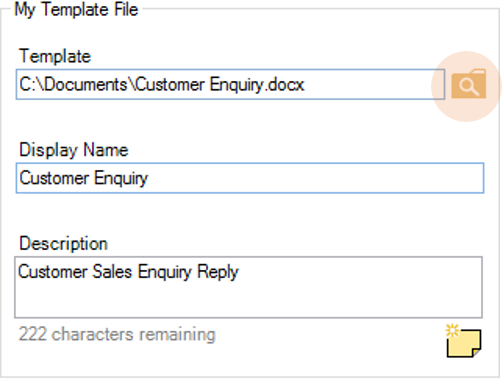
| |
Enter a Display Name. This is the name that will appear in the templates list. | |
Enter a Description. This will appear in the template preview. | |
Click the Add New template button to add this template to the selected folder. 

| |
Click the Save button. 
Your template has now been saved to the selected folder. |

| Tip When you add custom templates to the library, Copy-Fast adds a copy of your template, not the original. The same is true if you delete a template from the library. Copy-Fast deletes the copy, not your original template. |
Delete Custom Templates
You can easily delete unwanted custom templates after you have added them to the library.
Step | Instruction | ||
From the Templates pane click the My Template tab.
| |||
In the My Template Folders list, select the template you want to delete. | |||
Click the Delete button. 
| |||
Copy-Fast flags the selected phrase for deletion with a red cross. Remember, the template won’t be deleted until you click Save.
| |||
Click the Save button.
Your template has now been deleted. |