
Getting Started
Navigating Around Copy-Fast
Copy-Fast is an add-in (also known as a ‘plug-in’) for Microsoft Word for Windows. It integrates seamlessly into Microsoft Word so everything you need to write great copy productively – including emails, sales letters, blog posts and more – is in one place.
Each of Copy-Fast’s features are presented through a Task Pane on the side of the screen so you can work interactively with your document. We’ll just call them panes.
Here's a quick overview of how Copy-Fast 'fits' into Microsoft Word:
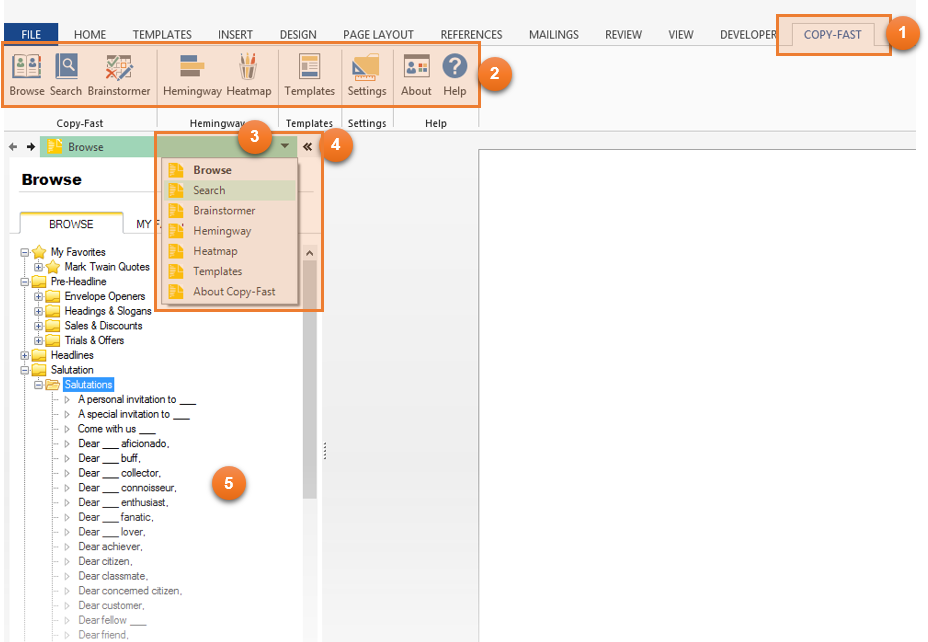
Ribbon Tab Once Copy-Fast is installed, you’ll have a new ribbon tab in Microsoft Word. | |
Ribbon Buttons Most features are available via Task Panes (a.k.a. panes) on the left-hand-side of the screen. Click a ribbon button to display the pane you want. | |
Pane Menu Above each pane is a small menu bar. Click the arrow to display a menu to switch between panes. | |
Hide / Show Panes When you’re not using Copy-Fast, click the left-arrow to hide the panes. Click the right-arrow to display them again.You can also click a button from the Copy-Fast ribbon. | |
Pane The task panes allow you to work interactively with your document. Each feature such as the phrase library, brainstormer, Heatmap and Hemingway work through panels. |