
Customise the Phrase Library
Add & Edit Favourite Folders
Before you can start adding your own favourite words and phrases, you'll want to create your own folders to organise them.
This page covers adding, editing and deleting your own custom folders to add your favourite words and phrases to.
To Add a Favourite Folder
Follow these steps to add a new My Favourites folder.
Step | Instruction |
Click the My Favourites tab to display the favourites pane. | |
Click the Add New folder button. 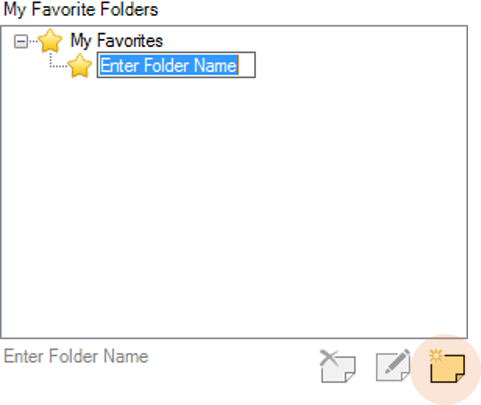
A new favourite folder will appear in the list. Enter the name of your new folder and press Enter. | |
Click the Save button 
Your new folder is ready to add your favourites to. 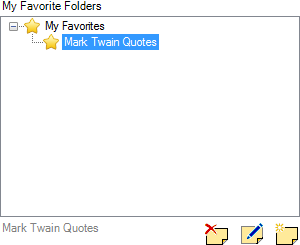
|
To Edit a Favourite Folder
You can also rename a favourite folder using the following steps.
Step | Instruction |
Click the My Favourites tab to display the favourites pane. | |
In the My Favourite Folders list, select the folder you want to rename. 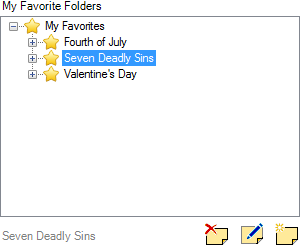
| |
Click the D button 
| |
Edit the folder name and press Enter. | |
Click the Save button
Your updated folder name has now been saved. |
To Delete a Favourite Folder
A quick word of warning:

| Note Deleting a custom folder will also delete all your favourite phrases in that folder. Remember, you can also rename custom folders using the Edit command. |
With that said, you can delete a favourite folder using the following steps:
Step | Instruction |
Click the My Favourites tab to display the favourites pane. | |
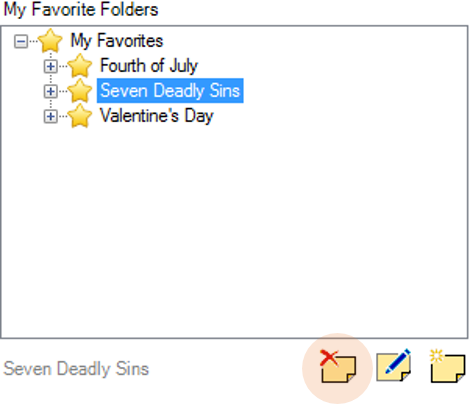
In the My Favourite Folders list, select the folder you want delete.
| |
Click the Delete button 
| |
Copy-Fast will confirm your intention. 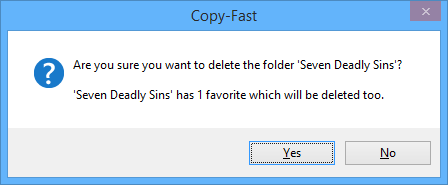
Click Yes if you want to delete the selected folder. The folder will not be deleted yet. Click No if you want to cancel this action. | |
If you clicked Yes, your folder has not been deleted yet. It has just been flagged for deletion by marking your folder with a red cross. (Remember, nothing really happens until you click Save). 
| |
If you’re happy to delete the flagged folder click the Save button.
Your folder and it contents will now be deleted. | |
If you don’t want to delete the flagged folder, simply click the Delete button again.
The red cross will be removed and the folder will no longer be deleted. |